Why scanned PDFs quietly break RAG pipelines
You build a RAG pipeline, it works on your test documents, and then a batch of real files comes in — contracts, older reports, signed forms, anything that went through a printer and a scanner — and half of them return nothing. No error, no warning. Those documents just aren't in your index, and nobody notices until a user asks about one and the model says "I don't have information on that."
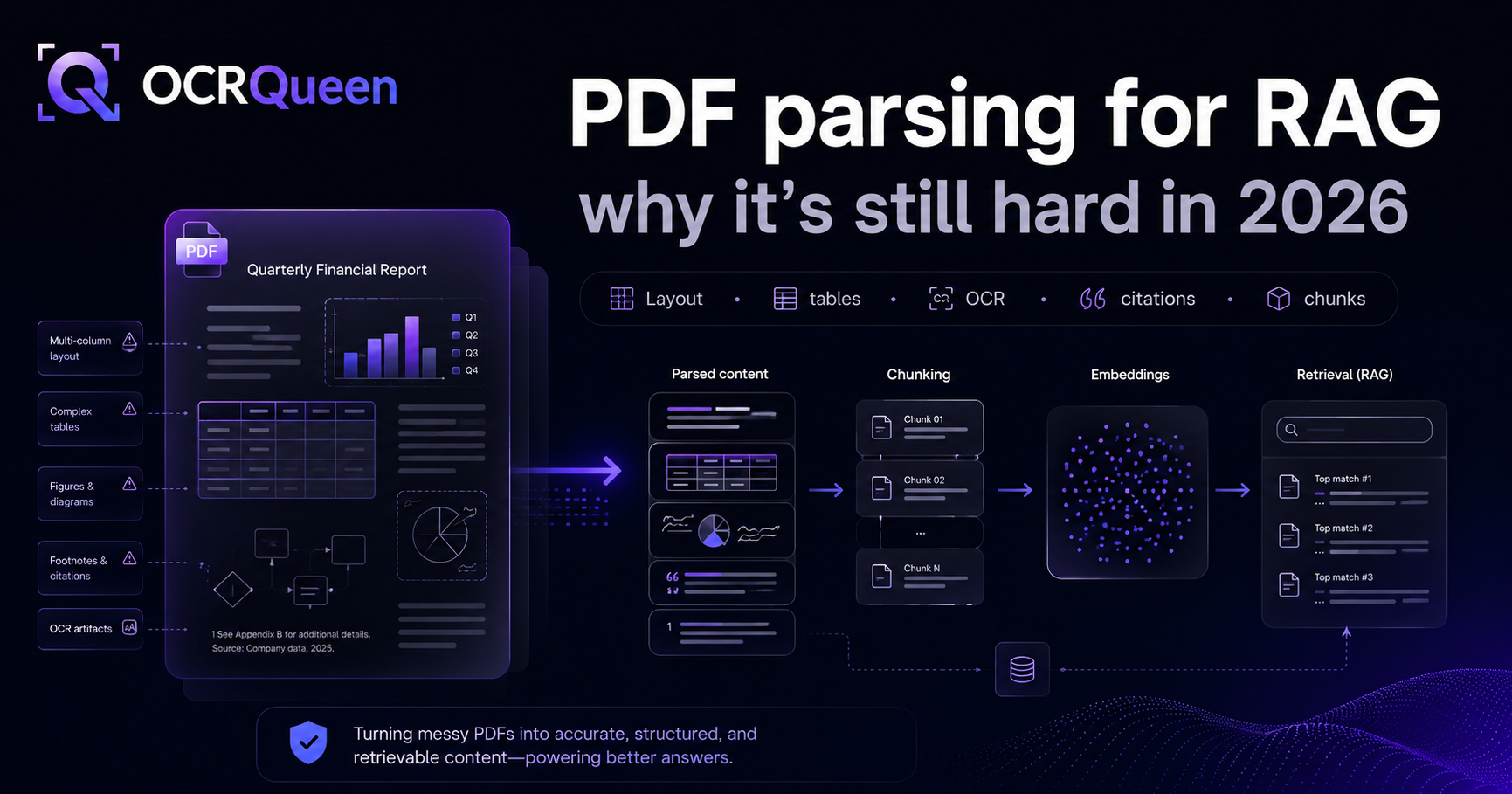
The cause is simple: a scanned PDF is an image of a page. There's no text layer underneath — no characters for a parser to read, just pixels. Standard extractors return empty strings and move on. This is one of the most common silent failures in document pipelines, and it's a subset of the broader problem we cover in why PDF parsing for RAG is still hard.
How to tell if a PDF is scanned
Before you can handle scans, you have to detect them. The reliable signal is the amount of extractable text per page: a digital page has a real text layer; a scanned page has almost none (just maybe an OCR-added layer of varying quality, or nothing).
import pypdfium2 as pdfium

def scanned_pages(path, min_chars=20):
    pdf = pdfium.PdfDocument(path)
    for i in range(len(pdf)):
        text = pdf[i].get_textpage().get_text_range().strip()
        yield i, len(text) < min_chars   # True → likely scanned, needs OCR
Real-world documents are often mixed: a born-digital report with a few scanned pages appended, or a form that's digital text with a scanned signature page. That's why "is this file scanned?" is the wrong question — it's per page.
Don't OCR everything — go hybrid
The instinct when scans show up is to run OCR on every page "to be safe." Don't. OCR is slower, and — more importantly — it's a reconstruction of text from pixels, so it introduces errors. Running it on a page that already has a perfect, byte-exact text layer throws away accuracy for no reason.
Why plain OCR still isn't enough
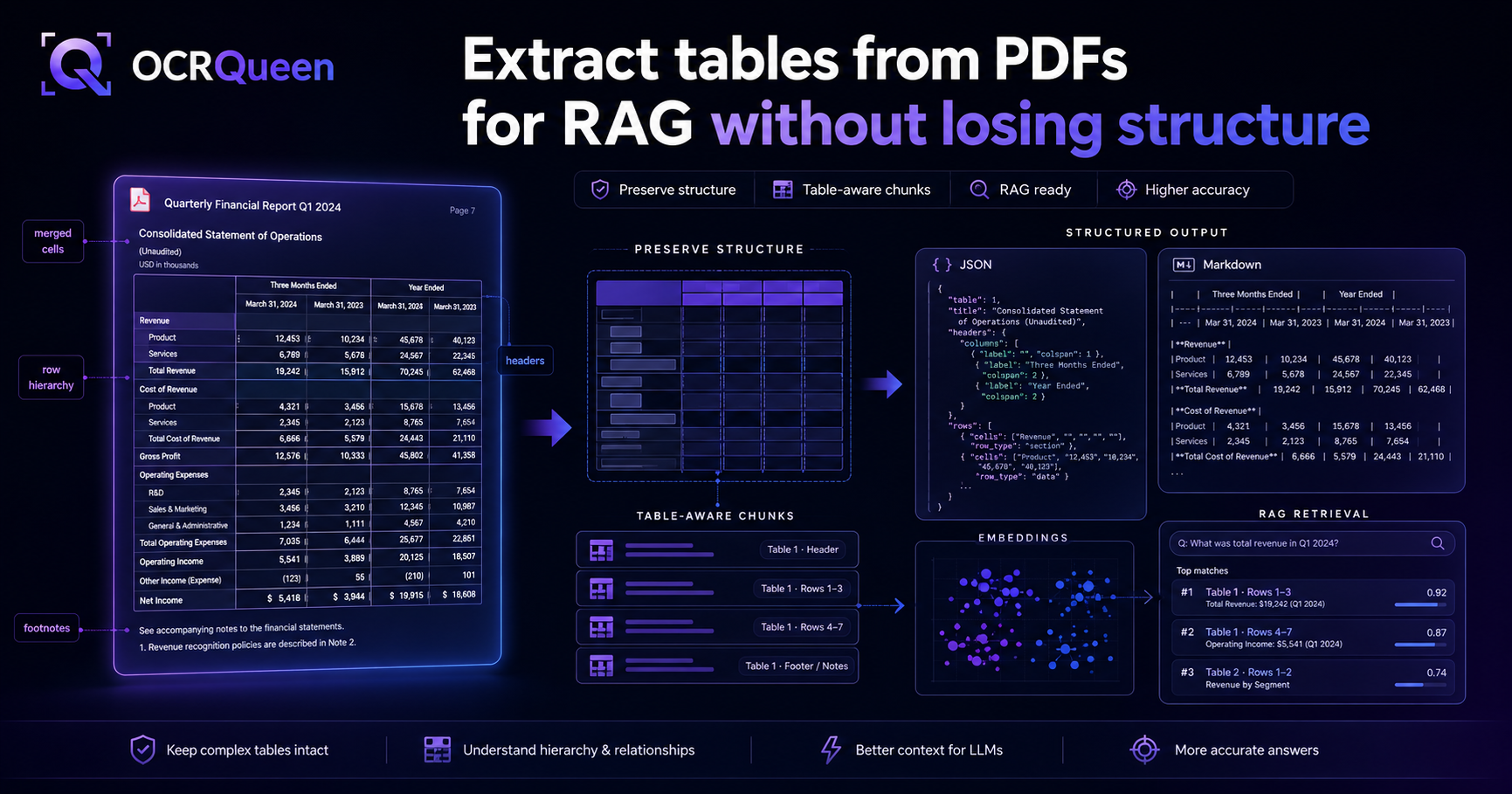
Here's the trap people fall into after they add OCR: they get text back, declare victory, and then their retrieval quality is still bad on those documents. The reason is that most OCR returns a flat stream of words — no headings, no paragraph boundaries, and critically, no table structure. A scanned table comes out as a jumble of numbers, which causes exactly the flattened-table hallucinations we covered separately.
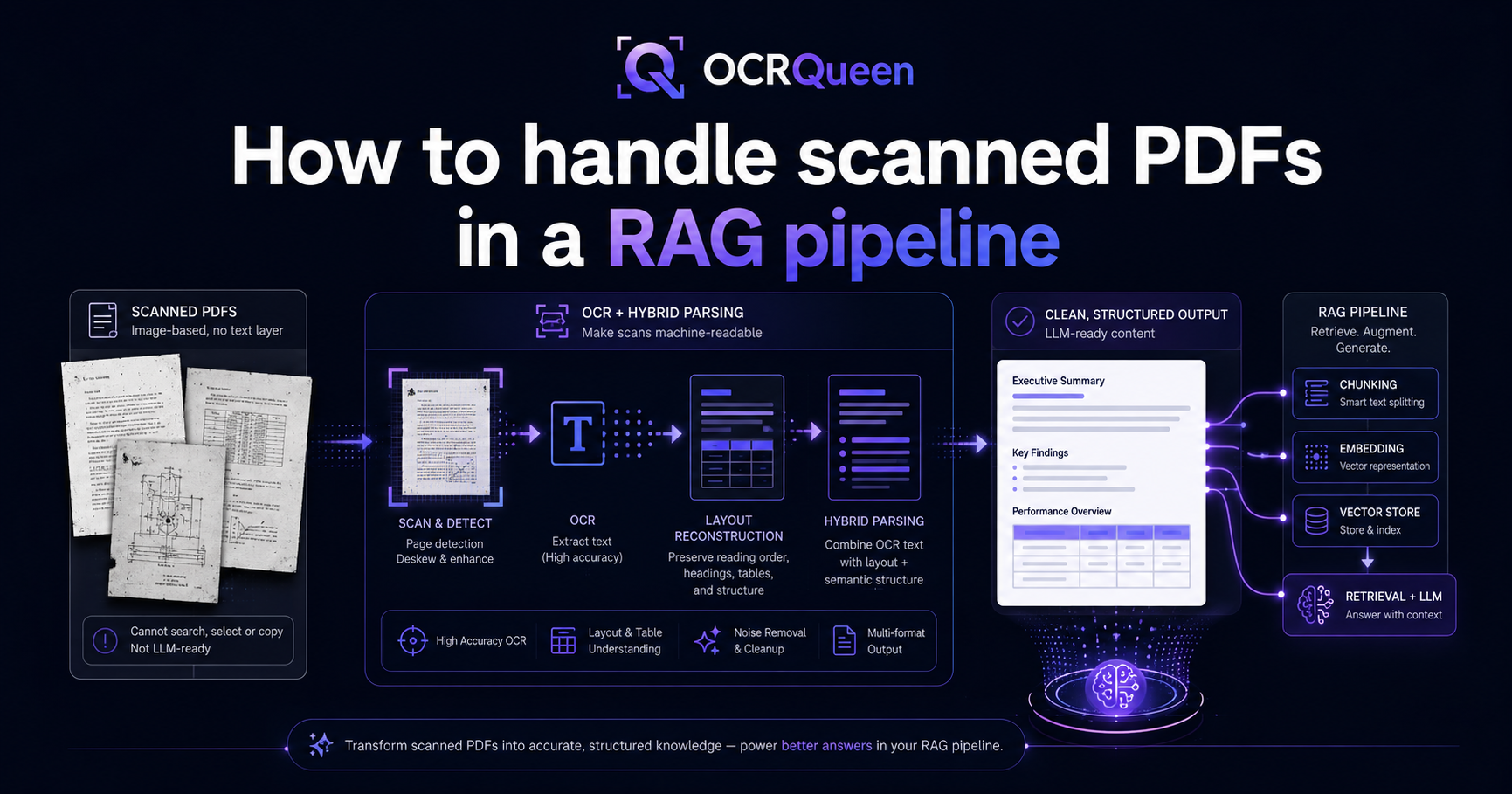
So the real requirement for scanned pages is OCR plus layout reconstruction: recognize the text, then rebuild headings, reading order, and tables on top of it — the same structured output you'd get from a digital page. Anything less and your scanned documents are second-class citizens in your index.
How OCRQueen handles scanned documents
OCRQueen does the detection and the hybrid routing for you. It uses the text layer where a page has a clean one, falls back to OCR on scanned pages, and reconstructs layout — headings, reading order, and tables as real headers + rows — regardless of which path a page took. You get one structured document back, in the same schema, whether the input was born-digital, fully scanned, or a mix.
pip install ocrqueenimport os
from ocrqueen import OCRQueen
client = OCRQueen(api_key=os.environ["OCRQUEEN_API_KEY"])
# Works the same whether the file is digital, scanned, or mixed.
with open("scanned-contract.pdf", "rb") as f:
job = client.extract.create(file=f)
result = client.jobs.wait(job)
markdown = result.result["markdown"] # clean structured text, tables intact
# → chunk by heading and embed, same as any other document
Handling poor-quality scans
Not all scans are clean. Skewed pages, low resolution, and noise all degrade OCR accuracy. The right fixes here are deterministic image preprocessing — deskewing, denoising, contrast normalization — because geometry and image math should never be guessed by a model. OCRQueen applies this preprocessing before recognition, so you don't have to build it. For your own inputs, two things help most upstream: scan at 300 DPI or higher, and avoid re-compressing scans as low-quality JPEGs before uploading.
Frequently asked questions
How do I extract text from a scanned PDF?
You need OCR, because a scanned PDF has no text layer to read. But for RAG, use OCR that also reconstructs layout — headings, reading order, and tables — rather than plain OCR that returns a flat word stream. OCRQueen does both in one extract.create() call and returns structured text.
Can I use scanned PDFs in a RAG pipeline?
Yes, but only if your extraction step handles them. Most pipelines silently skip scanned pages because a normal parser returns no text. Add hybrid OCR (text layer where available, OCR on scanned pages) with layout reconstruction, and scanned documents become first-class citizens in your index.
How do I detect whether a PDF is scanned?
Check the extractable text per page — a scanned page has almost none. The code sample above flags pages under a character threshold. Remember it's per page: real documents are often a mix of digital and scanned pages, so detect at the page level, not the file level.
Should I just OCR every PDF to be safe?
No. OCR reconstructs text from pixels and introduces errors, so running it on pages that already have a clean text layer costs you accuracy and speed for nothing. Use the text layer where it exists and reserve OCR for the pages that actually need it.
What about tables in scanned documents?
Plain OCR flattens scanned tables into unusable text. You need OCR plus table-structure reconstruction so the table comes back as real rows and columns. OCRQueen rebuilds table structure on scanned pages too — see extracting tables from PDFs for RAG.
How do I improve OCR accuracy on poor scans?
Scan at 300 DPI or higher and avoid heavy JPEG compression before uploading. On the extraction side, deterministic preprocessing — deskew, denoise, contrast normalization — does the heavy lifting; OCRQueen applies this automatically before recognition.
Sources
- ISO/IEC 19005 (PDF/A) — archival PDF, including scanned-document profiles, accessed 2026-07-08.
- pypdfium2 — PDF rendering and text extraction, accessed 2026-07-08.
- OCRQueen — Why PDF parsing for RAG is still hard, accessed 2026-07-08.
- OCRQueen — API documentation, accessed 2026-07-08.
- OCRQueen Python SDK on PyPI, accessed 2026-07-08.
Have a batch of scans your current pipeline is skipping? Drop one into the OCRQueen playground and see the structured text come back. First 200 pages free.