Why table extraction is the hardest part of PDF parsing
If you've built a RAG pipeline on documents, tables are almost certainly where it fell apart. It's the most common complaint in RAG communities for a reason: a table looks simple to a human, but to a PDF it's just a set of lines and text fragments scattered at specific coordinates. There is no underlying "this is row 2, column 3" structure to read — your extractor has to infer the grid.
Most tools infer it badly. They read the text left to right, top to bottom, and hand you something like this:
Item Qty Unit price Total Widget A 100 $2.50 $250.00 Widget B 50 $4.00
$200.00 Subtotal $450.00
Everything's there, but the structure is gone. You can't tell where a row starts, which number is a quantity versus a price, or that "$450.00" is a subtotal. This is what "flattened" means, and it's the root of a huge share of RAG problems.
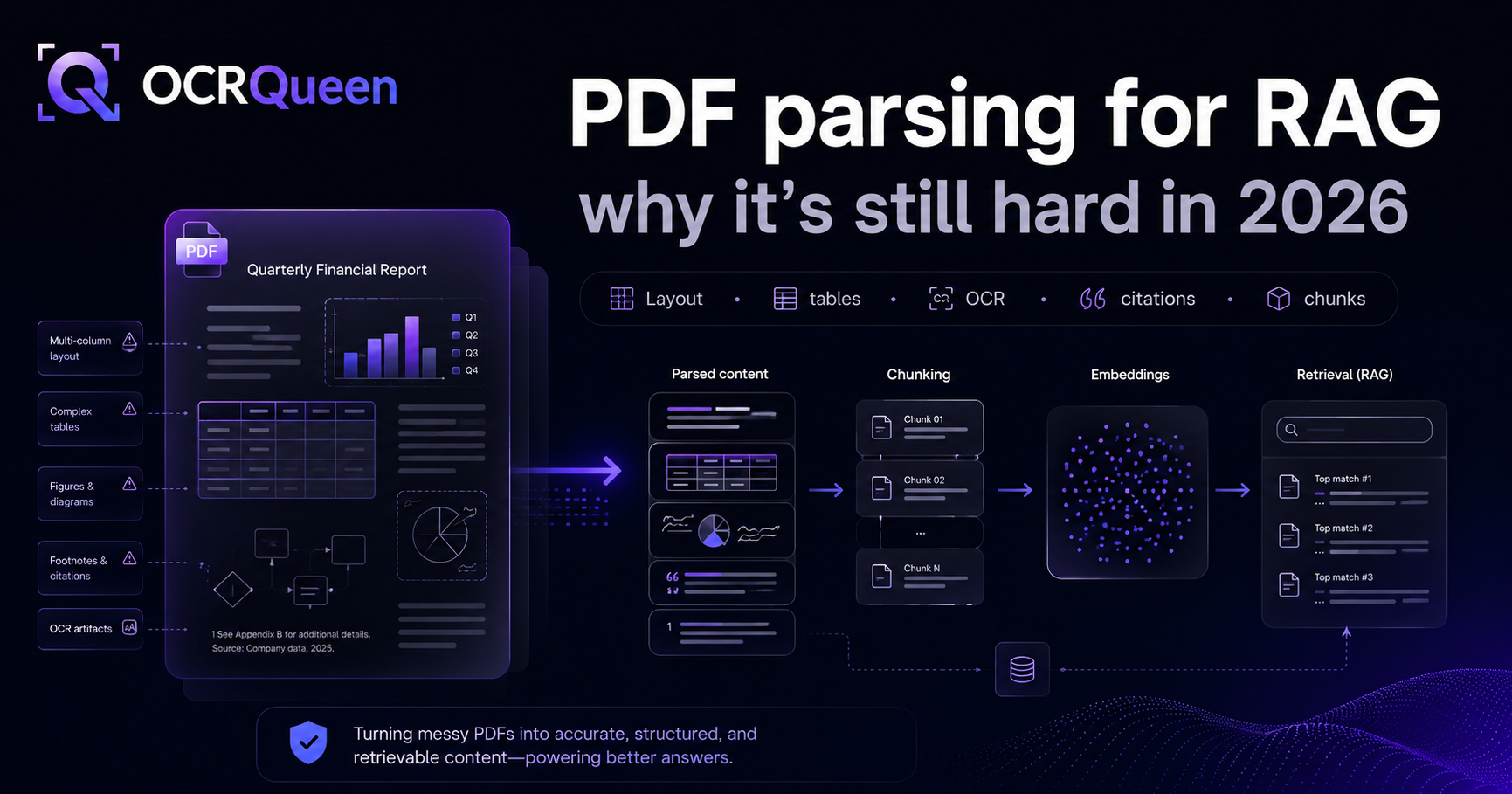
This post is specifically about fixing that — getting tables out of PDFs as real, structured data. It's part of our larger guide on why PDF parsing for RAG is still hard; here we go deep on the table problem alone.
What flattened tables do to your LLM
Here's the failure that actually hurts. You embed that flattened text, retrieve it for a question like "what's the total for Widget B?", and hand it to the model. The LLM sees a jumble of numbers with no clear structure — so it does what LLMs do: it produces a confident, plausible answer. Sometimes it's right. Often it isn't.
The fix isn't a better prompt or a bigger model. It's getting the table out with its structure intact before it ever reaches the LLM.
Why PDF tables break tools: the three types
Not all tables are equally hard. Knowing which kind you're dealing with explains why a given tool works on one document and fails on the next:
- Bordered digital tables — clean ruled lines, real text layer. The easy case. Tools like Camelot and pdfplumber handle these well because the borders give clear cell boundaries.
- Borderless / whitespace tables — columns separated by spacing, not lines. Much harder: the extractor has to guess column boundaries from alignment, and this is where most simple tools produce merged columns.
- Scanned tables — an image, no text layer at all. Needs OCR and table-structure reconstruction. The hardest case, and where most pipelines give up.
Real document sets are a mix of all three, which is why "just use Camelot" works in a tutorial and breaks on your actual corpus.
What good table extraction returns
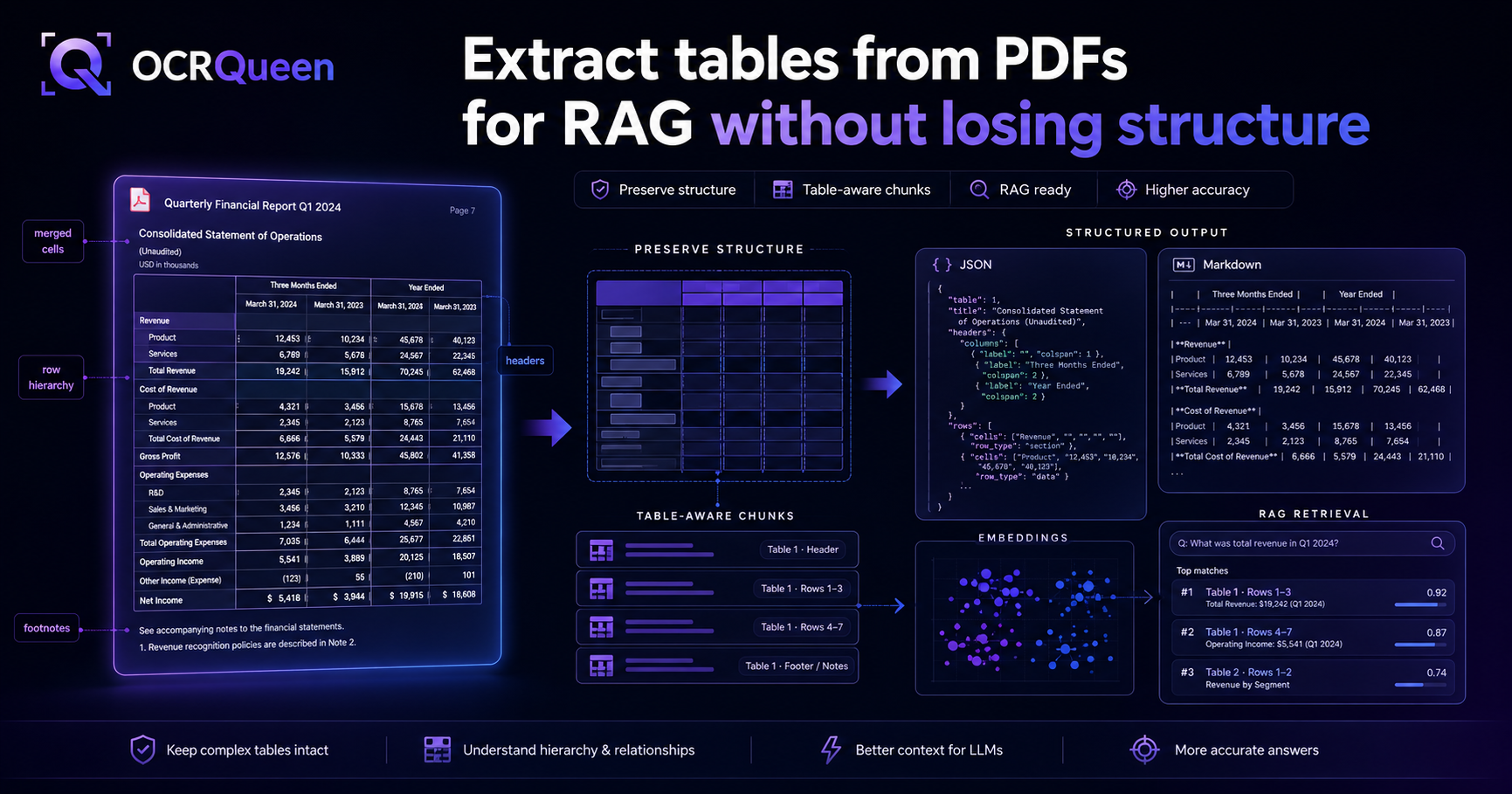
The target output is the same regardless of table type: a real 2D structure with headers and rows kept separate.
{
  "type": "table",
  "headers": ["Item", "Qty", "Unit price", "Total"],
  "rows": [
    ["Widget A", "100", "$2.50", "$250.00"],
    ["Widget B", "50",  "$4.00", "$200.00"]
  ]
}
Now "Widget B → 50 → $4.00 → $200.00" is unambiguous. Two things fall out of this for free:
- Exact lookups — drop
rowsstraight into a pandas DataFrame and query it like data, because it is data. - Clean LLM input — render it as a Markdown table, which LLMs read far more reliably than a flattened string.
How to extract tables with OCRQueen
OCRQueen returns every table as structured headers + rows, across bordered, borderless, and scanned tables — in the same schema, from one API call. Install the library:
pip install ocrqueenExtract a document and pull out its tables as pandas DataFrames:
import os
import pandas as pd
from ocrqueen import OCRQueen

client = OCRQueen(api_key=os.environ["OCRQUEEN_API_KEY"])

with open("invoice.pdf", "rb") as f:
    job = client.extract.create(file=f)
result = client.jobs.wait(job)

# Walk the typed document and collect every table as a DataFrame.
def tables_as_dataframes(document):
    for page in document["pages"]:
        for block in page["blocks"]:
            if block["type"] == "table":
                yield pd.DataFrame(block["rows"], columns=block["headers"])

for df in tables_as_dataframes(result.result):
    print(df)
Two ways to put tables into a RAG pipeline
Once tables come out structured, you have two solid patterns for RAG — pick per use case:
Pattern 1: Keep tables inline as Markdown
For most documents, keep the table as a Markdown table inside its chunk. LLMs read Markdown tables well, and the table stays with its surrounding context. OCRQueen's markdown output already renders tables this way, so chunk the Markdown by heading and the tables ride along intact.
from langchain.text_splitter import MarkdownHeaderTextSplitter

markdown = result.result["markdown"]   # tables already rendered as Markdown tables
splitter = MarkdownHeaderTextSplitter(headers_to_split_on=[("#", "h1"), ("##", "h2")])
chunks = splitter.split_text(markdown)  # tables stay whole, never split mid-row
Pattern 2: Tables as their own retrievable chunks
When users specifically query tabular data ("show me the Q3 figures"), make each table its own chunk with metadata, so retrieval can target tables directly:
for page in result.result["pages"]:
    for block in page["blocks"]:
        if block["type"] == "table":
            md = "| " + " | ".join(block["headers"]) + " |\n"
            md += "|" + "---|" * len(block["headers"]) + "\n"
            for row in block["rows"]:
                md += "| " + " | ".join(row) + " |\n"
            vector_store.add(text=md, metadata={"type": "table", "page": page["page"]})
A note on native charts and PowerPoint
Some "tables" are really charts — bar graphs, line charts. For those, extracting the rendered image isn't enough; you want the numbers behind it. When a chart is authored natively (like in PowerPoint), OCRQueen returns the underlying data series — categories and values — not an OCR guess off the pixels. If your documents include decks, the PPTX to JSON guide covers that path.
Frequently asked questions
How do I extract tables from a PDF without losing structure?
Use an extractor that returns tables as 2D data — separate headers and rows — instead of one flattened line of text. Then keep the JSON for exact lookups and render Markdown for the LLM. The thing to avoid is any tool that collapses a table into space-separated text, because that's unrecoverable downstream.
How do I convert a PDF table to JSON?
Extract the document and read the table blocks — each has headers and rows you can serialize directly to JSON. With OCRQueen it's one extract.create() call; the table blocks come back as JSON already. The code sample above shows collecting them into pandas, which is one line from JSON.
What's the best tool to extract tables from PDFs?
For clean bordered digital tables, Camelot and pdfplumber work well and are free. For borderless, scanned, or mixed document sets — where column boundaries aren't ruled lines — you need layout/AI-based reconstruction; a hosted API like OCRQueen handles all three types in one schema so you don't switch tools per document. Test it on your hardest table, not a clean one.
Can I extract tables from scanned PDFs?
Yes, but you need OCR plus table-structure reconstruction — plain OCR alone gives you flattened text again. OCRQueen's standard mode handles scanned tables; the cell structure is rebuilt from the recognized text, so you still get headers and rows.
How do I get PDF tables into pandas?
Once tables come back as headers + rows, it's pd.DataFrame(rows, columns=headers) — one line. The code sample above wraps it in a helper that yields a DataFrame for every table in the document.
Why does my LLM hallucinate numbers from tables?
Almost always because the table was flattened before it reached the model. When columns merge into text, the LLM can't tell which value belongs to which row, so it guesses. Fix the extraction — keep the table structured — and the hallucinations on tabular questions largely disappear. More on this in why PDF parsing for RAG is hard.
Sources
- ISO 32000-2:2020 — Portable document format (PDF 2.0), accessed 2026-07-07.
- Camelot — PDF table extraction documentation, accessed 2026-07-07.
- LangChain — MarkdownHeaderTextSplitter, accessed 2026-07-07.
- OCRQueen — API documentation, accessed 2026-07-07.
- OCRQueen Python SDK on PyPI, accessed 2026-07-07.
The real test is your worst table — a borderless one, or a scan. Drop it into the OCRQueen playground and check whether the rows and columns come back intact. First 200 pages free.