Why extracting PPTX to JSON is harder than it looks
PowerPoint files are not just text files with slides. A PPTX can contain slide titles, body text, tables, charts, embedded images, diagrams, speaker notes, hidden layouts, slide masters, and design objects. If you only extract visible text, you miss much of the useful information.
This matters when you are building search, automation, RAG pipelines, sales enablement tools, training libraries, content analysis systems, or internal knowledge apps. The useful output is not a plain text dump. The useful output is structured JSON that tells your application what each slide contains and how the content is organized.
This guide explains how to extract PowerPoint files into structured JSON using OCRQueen. We will cover what good PPTX JSON looks like, how to preserve speaker notes, how to use Python and Node.js SDKs, and how to prepare this workflow for production.
What good PPTX JSON should include
A good PPTX-to-JSON result should preserve the parts of a presentation that matter to software. The exact schema can vary by product, but the output should be predictable enough that your app can process every deck the same way.
- Slide order: every slide should be returned in the original sequence.
- Slide title: title text should be separated from body text when possible.
- Text blocks: paragraphs, bullets, and labels should be represented as structured blocks.
- Speaker notes: notes should be preserved separately from visible slide content.
- Tables: table content should come back as rows and columns, not broken plain text.
- Images and diagrams: image references, alt text, and diagram content should be captured when available.
- Markdown output: Markdown is useful for search, AI assistants, RAG, and human-readable previews.
The key point: PPTX extraction is not only about reading words from slides. It is about converting a presentation into a structure your code can trust.
Common use cases for PowerPoint extraction
PPTX to JSON is useful anywhere presentations contain business knowledge that needs to become searchable, reusable, or machine-readable.
| Use case | What you extract | Why JSON helps |
|---|---|---|
| Sales enablement search | Slide titles, bullets, speaker notes, product claims | Lets reps search old decks by topic, objection, customer type, or feature. |
| RAG knowledge base | Slide content and notes | Turns decks into chunks that AI assistants can cite and retrieve. |
| Training content library | Modules, lessons, slide notes, images | Makes training decks reusable inside LMS or internal tools. |
| Investor deck analysis | Headlines, metrics, charts, narrative notes | Allows review tools to compare claims, structure, and messaging. |
| Content repurposing | Slide text, speaker notes, diagrams | Turns presentations into blog drafts, docs, summaries, or social content. |
| Compliance review | Visible text and speaker notes | Finds risky claims hidden in notes or reused deck templates. |
How OCRQueen handles PPTX extraction
OCRQueen extracts structured JSON and Markdown from PPTX and PPT files, along with PDFs and common image formats. For PowerPoint workflows, the important part is that speaker notes are preserved instead of being flattened into the slide body.
| Input | Output | Useful for |
|---|---|---|
| PPTX and PPT files | Structured JSON + Markdown | Slide extraction, speaker notes extraction, RAG, search, automation, content workflows |
| PDF, PNG, JPEG, WebP, HEIC, HEIF | Structured JSON + Markdown | Mixed document pipelines that need more than PowerPoint support |
OCRQueen supports two extraction profiles. The standard profile extracts text, tables, images, and math. The advanced profile adds diagram graph extraction, image alt text, and embedded-text OCR. For most slide decks, start with standard. Use advanced when slides contain diagrams, screenshots, image-heavy layouts, or text inside embedded images.
You can test a real deck in the OCRQueen playground or read the API reference at /docs.
Example PPTX JSON structure
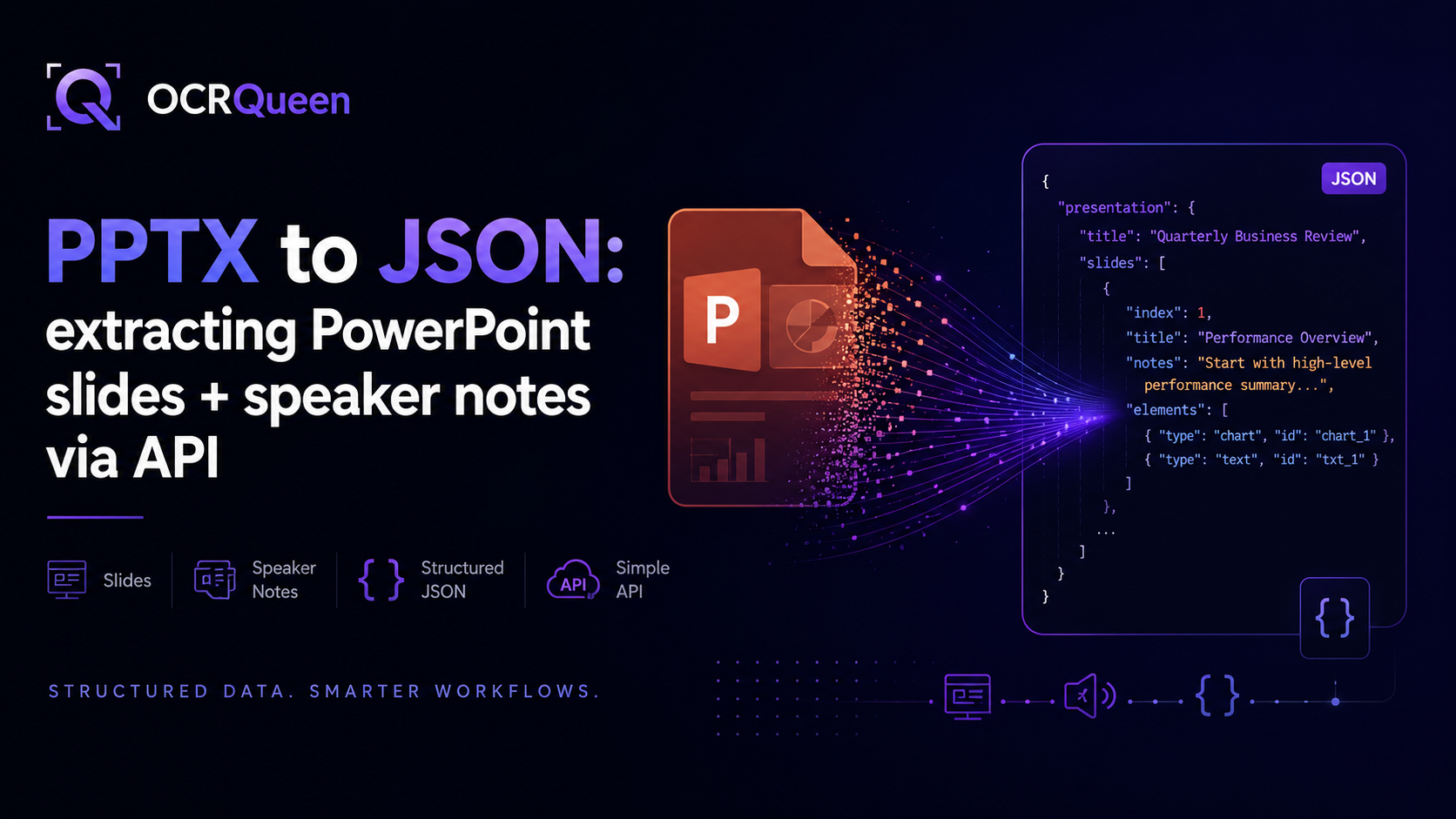
A useful PPTX extraction result should make slides easy to loop through. Your app should be able to ask simple questions: What is the slide title? What visible content is on the slide? Are there speaker notes? Are there tables or images?
{
  "source": {
    "file_type": "pptx",
    "slide_count": 12
  },
  "extraction": {
    "profile": "standard",
    "duration_ms": 2840
  },
  "presentation": {
    "title": "Quarterly Business Review",
    "slides": [
      {
        "index": 1,
        "title": "Executive Summary",
        "blocks": [
          {
            "type": "heading",
            "text": "Executive Summary"
          },
          {
            "type": "list",
            "items": [
              "Revenue increased across enterprise accounts",
              "Pipeline coverage improved in Q2",
              "Support volume remained stable"
            ]
          }
        ],
        "speaker_notes": "Start with the headline numbers, then explain the enterprise segment growth."
      },
      {
        "index": 2,
        "title": "Pipeline by Region",
        "blocks": [
          {
            "type": "table",
            "headers": ["Region", "Pipeline", "Change"],
            "rows": [
              ["North America", "$2.4M", "+18%"],
              ["Europe", "$1.1M", "+9%"],
              ["APAC", "$820K", "+12%"]
            ]
          }
        ],
        "speaker_notes": "Call out APAC growth even though the total is smaller."
      }
    ]
  },
  "markdown": "# Quarterly Business Review\n\n## Executive Summary\n\n- Revenue increased across enterprise accounts\n- Pipeline coverage improved in Q2\n- Support volume remained stable\n\nSpeaker notes: Start with the headline numbers..."
}
The exact output depends on the deck, but the goal is consistent: slides become objects, slide content becomes blocks, and speaker notes remain accessible as their own field.
Python example: extract PPTX to JSON
The Python workflow is straightforward: open the file, create an extraction job, wait for the result, then read the JSON and Markdown outputs.
pip install ocrqueenimport os
import json
from ocrqueen import OCRQueen
client = OCRQueen(api_key=os.environ["OCRQUEEN_API_KEY"])
with open("quarterly-review.pptx", "rb") as f:
job = client.extract.create(
file=f,
options={
"extraction_profile": "standard"
}
)
result = client.jobs.wait(job)
document_json = result.result["document"]
markdown = result.result["markdown"]
print(json.dumps(document_json, indent=2)[:2000])
print(markdown[:1000])For decks with diagrams, screenshots, or image-heavy slides, switch to advanced:
with open("product-training-deck.pptx", "rb") as f:
    job = client.extract.create(
        file=f,
        options={
            "extraction_profile": "advanced"
        }
    )

result = client.jobs.wait(job)
Use standard when the deck is mostly text, tables, and normal slide content. Use advanced when content is embedded in screenshots, diagrams, or images.
Node.js example: extract PPTX to JSON
If your application is built in Node.js, the flow is the same: create a client, send the file, wait for the extraction, then store or process the returned JSON.
npm install ocrqueenimport fs from "node:fs";
import { OCRQueen } from "ocrqueen";
const client = new OCRQueen({
apiKey: process.env.OCRQUEEN_API_KEY
});
const file = fs.createReadStream("quarterly-review.pptx");
const job = await client.extract.create({
file,
options: {
extraction_profile: "standard"
}
});
const result = await client.jobs.wait(job.id);
const documentJson = result.result.document;
const markdown = result.result.markdown;
console.log(JSON.stringify(documentJson, null, 2).slice(0, 2000));
console.log(markdown.slice(0, 1000));For a server-side workflow, save the job ID in your database and process the result asynchronously. For small scripts, waiting directly is fine. For production web apps, use webhooks.
Extracting speaker notes from PPTX
Speaker notes are often where the real narrative lives. A slide may show three bullets, but the notes may explain the customer story, sales objection, training script, or compliance warning. If your extraction pipeline ignores notes, your application receives an incomplete version of the deck.
With OCRQueen, PowerPoint speaker notes are preserved in the extraction result. Your code can process visible slide content and speaker notes separately.
def extract_speaker_notes(document_json):
    slides = document_json["presentation"]["slides"]

    for slide in slides:
        slide_number = slide["index"]
        title = slide.get("title")
        notes = slide.get("speaker_notes")

        if notes:
            yield {
                "slide": slide_number,
                "title": title,
                "speaker_notes": notes
            }
This is useful for search, training analysis, script generation, QA review, and AI assistants that need the full deck context rather than only visible slide text.
Converting PowerPoint slides into Markdown
JSON is best for applications. Markdown is often better for AI systems and human-readable previews. For example, if you are indexing a deck for RAG, Markdown gives you a clean text format with headings and slide order preserved.
result = client.jobs.wait(job)

markdown = result.result["markdown"]

with open("quarterly-review.md", "w", encoding="utf-8") as f:
    f.write(markdown)
A common pattern is to store both outputs:
- JSON for application logic, database records, slide-level metadata, and automation.
- Markdown for RAG, search indexing, summaries, and AI assistants.
Building a RAG pipeline from PPTX files
PowerPoint decks are common sources of internal knowledge. Product decks, sales decks, onboarding decks, investor decks, and training decks often contain information that never makes it into formal documentation.
For RAG, you usually want to chunk the deck by slide. Speaker notes should be included in the same chunk as the slide content, but labeled separately so your app can show where the answer came from.
def pptx_to_rag_chunks(document_json):
    slides = document_json["presentation"]["slides"]

    for slide in slides:
        slide_index = slide["index"]
        title = slide.get("title", f"Slide {slide_index}")

        visible_text = []
        for block in slide.get("blocks", []):
            if block["type"] in ["heading", "paragraph"]:
                visible_text.append(block.get("text", ""))
            elif block["type"] == "list":
                visible_text.extend(block.get("items", []))
            elif block["type"] == "table":
                visible_text.append("Table: " + ", ".join(block.get("headers", [])))

        notes = slide.get("speaker_notes", "")

        chunk = f"""Slide {slide_index}: {title}

Visible slide content:
{chr(10).join(visible_text)}

Speaker notes:
{notes}
"""

        yield {
            "id": f"slide-{slide_index}",
            "text": chunk,
            "metadata": {
                "slide": slide_index,
                "title": title,
                "source_type": "pptx"
            }
        }
This gives your search or AI system more context than visible slide text alone. It also keeps each answer traceable to a specific slide.
Production pattern: use webhooks instead of waiting
Waiting for an extraction result is fine for local scripts. In production, submit the job, return immediately, and process the result when OCRQueen sends a webhook. That keeps your web server responsive and makes longer decks easier to handle.
with open("training-deck.pptx", "rb") as f:
    job = client.extract.create(
        file=f,
        options={
            "extraction_profile": "advanced",
            "callback_url": "https://your-app.com/webhooks/ocrqueen"
        }
    )

# Save job.id in your database.
# OCRQueen will call your webhook when the result is ready.
OCRQueen webhook deliveries use Standard Webhooks signing with HMAC-SHA256 and a timestamp. Always verify the signature before trusting the payload.
from ocrqueen import verify_webhook

@app.post("/webhooks/ocrqueen")
def handle_ocrqueen_webhook(request):
    body = request.body
    headers = request.headers

    if not verify_webhook(body, headers, secret=os.environ["OCRQUEEN_WEBHOOK_SECRET"]):
        return Response(status_code=400)

    payload = json.loads(body)
    process_extraction_result(payload)

    return Response(status_code=204)
Handling sensitive slide decks
Slide decks often contain sensitive material: financial projections, customer names, sales plans, product roadmap details, internal training, legal review notes, or board updates. A production extraction pipeline should control how long source files and extracted content are retained.
OCRQueen supports per-request retention controls. Use retain_hours for source files and result_retain_hours for extracted content. Both can be set from 0 to 168 hours, with 24 hours as the default. Setting both to 0 supports ephemeral processing with webhook delivery.
with open("board-update.pptx", "rb") as f:
    job = client.extract.create(
        file=f,
        options={
            "callback_url": "https://your-app.com/webhooks/ocrqueen",
            "retain_hours": 0,
            "result_retain_hours": 0
        }
    )
If you need to delete a job later, use the purge endpoint:
client.jobs.purge(job.id)For the full retention contract, see /docs/data-retention.
Writing extracted images to your own storage
Some PowerPoint decks include diagrams, screenshots, charts, product images, or architecture drawings. If you want extracted image artifacts written to your own storage, OCRQueen supports BYOS: Bring Your Own Storage. Output artifacts can be written directly to your S3 or R2 bucket.
This is useful when your application already has a storage and permission model. Instead of copying images from one system to another later, your extraction workflow can write artifacts where your app expects them.
Read the storage setup docs at /docs/storage.
Choosing the right extraction profile
| Deck type | Recommended profile | Reason |
|---|---|---|
| Text-heavy sales deck | standard |
Usually enough for titles, bullets, tables, images, and notes. |
| Training deck with screenshots | advanced |
Embedded-text OCR and image alt text can capture more context. |
| Architecture or workflow diagrams | advanced |
Diagram graph extraction can help preserve diagram relationships. |
| Investor deck with charts | advanced |
Charts, images, and embedded labels may need deeper extraction. |
| Simple internal slide deck | standard |
Start cheaper and simpler, then upgrade only if output is missing important context. |
Frequently asked questions
How do I convert PPTX to JSON?
Use a document extraction API that supports PowerPoint parsing. With OCRQueen, upload the PPTX file, wait for the extraction job, and read the structured JSON result. The output can include slide order, slide content, tables, images, and speaker notes.
How do I extract speaker notes from PPTX?
Speaker notes should be extracted separately from visible slide content. OCRQueen preserves PPTX speaker notes in the structured extraction result, so your app can index or analyze notes without mixing them into normal slide body text.
Is there a PowerPoint to JSON API?
Yes. OCRQueen supports PPTX and PPT extraction into structured JSON and Markdown. This is useful for search, AI assistants, RAG pipelines, content repurposing, training analysis, and compliance review.
What is a PPTX parser API?
A PPTX parser API reads a PowerPoint file and returns structured content your application can use. A good parser should preserve slide order, titles, text blocks, tables, images, and speaker notes instead of returning one flat text string.
Can I convert PPTX to Markdown?
Yes. OCRQueen returns Markdown along with structured JSON. Markdown is useful for RAG, search indexing, summaries, documentation workflows, and AI assistants because it keeps the deck readable while preserving slide-level structure.
Can I use PowerPoint files in a RAG pipeline?
Yes. The best pattern is to chunk by slide and include speaker notes with the slide content. This keeps retrieval results traceable to a specific slide and gives the AI assistant more context than visible slide text alone.
Can an API extract images and diagrams from PowerPoint?
Yes, if the API supports image and diagram handling. OCRQueen's standard profile extracts images, and the advanced profile adds diagram graph extraction, image alt text, and embedded-text OCR for image-heavy decks.
How do I process confidential PowerPoint decks safely?
Use retention controls and webhooks. OCRQueen lets you set retain_hours and result_retain_hours per request. Both can be set to 0 for ephemeral processing with webhook delivery. You can also purge a job on demand.
Can I extract PPTX to JSON in Python?
Yes. Use the OCRQueen Python SDK, upload the PPTX file, and wait for the job result. The Python example above shows how to extract a PowerPoint deck and read both JSON and Markdown outputs.
Can I extract PPTX to JSON in Node.js?
Yes. Use the OCRQueen Node.js SDK to submit the PPTX file and retrieve the extraction result. The Node.js example above shows the basic flow for getting structured JSON and Markdown from a PowerPoint file.
Sources
- OCRQueen — API documentation, accessed 2026-05-17.
- OCRQueen — Data retention controls, accessed 2026-05-17.
- OCRQueen — Storage and BYOS documentation, accessed 2026-05-17.
- OCRQueen — Playground, accessed 2026-05-17.
The fastest way to evaluate PPTX extraction is to use your hardest real deck, not a sample file. Try OCRQueen's playground with a PowerPoint file that includes slides, speaker notes, tables, images, or diagrams, then compare the JSON and Markdown outputs against what your app needs.